Marketing teams record webinars for lead generation, then let the recording sit in a folder after the live event ends. That’s a missed opportunity, because a single 60-minute webinar usually contains enough standalone insight to fuel weeks of social content. Video Editor AI turns that recorded session into a set of short, platform-ready clips without requiring anyone on the team to re-edit footage by hand.
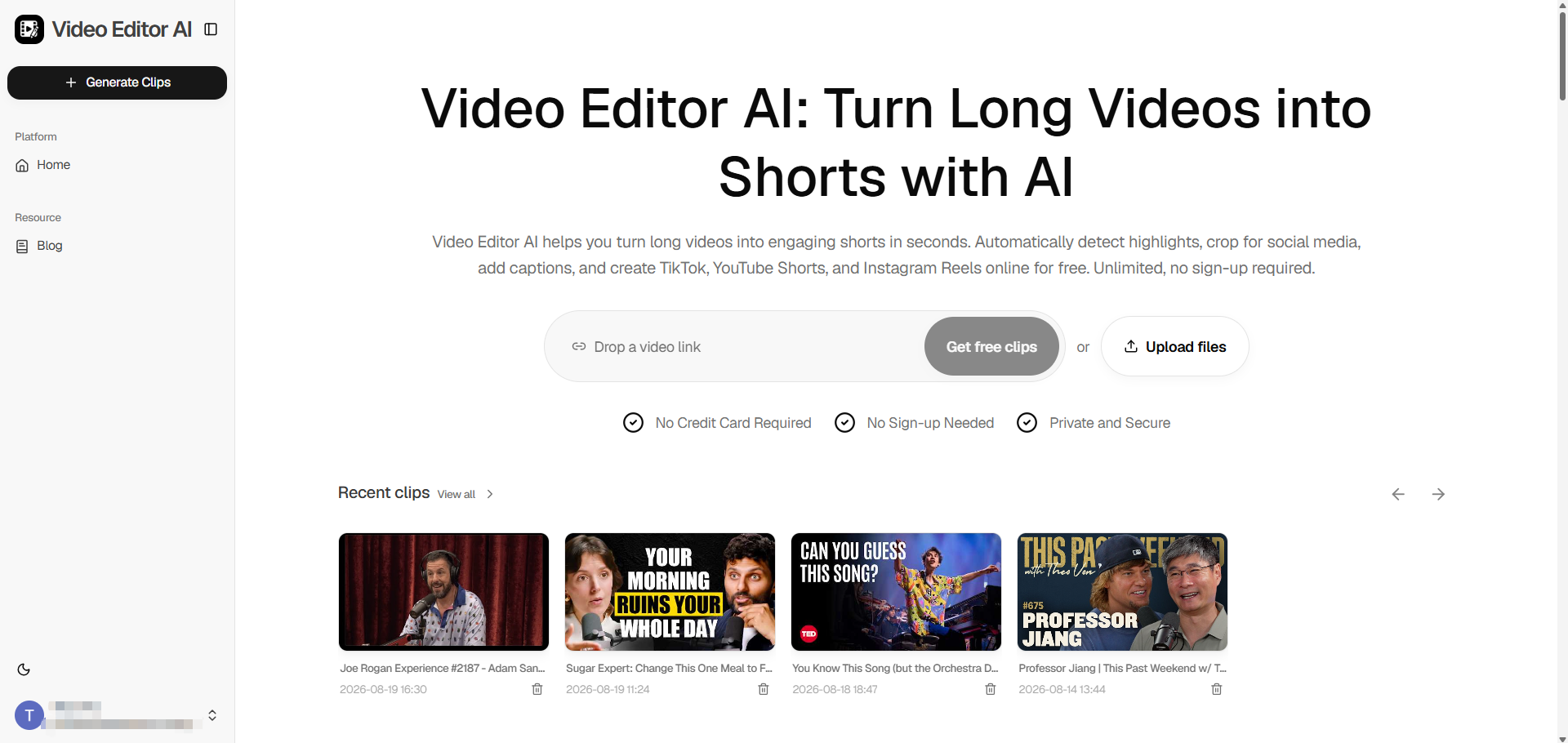
(Video Editor AI Main Page)
Why Webinars Are an Underused Content Source
A webinar recording is dense with exactly the kind of material that performs well on social: real questions, real answers, product demonstrations, and expert commentary delivered in a natural, unscripted way. Unlike scripted marketing video, it doesn’t feel like an ad — which is precisely why audiences respond to clips pulled from it.
The Problem with Letting Recordings Sit Unused
Most webinar recordings get watched by a small fraction of registrants and then never touched again. The insight inside them doesn’t disappear, but it also doesn’t reach anyone new unless someone takes the time to extract it — and that extraction work is usually where the process stalls out.
Turning One Recording into a Content Calendar
Step One: Upload the Full Session
Bring in the raw recording, Q&A portion included. Some of the best short-form moments in a webinar come from unscripted audience questions rather than the prepared slides.
Step Two: Let the AI Surface the Standout Moments
The system reviews the transcript and audio pacing to flag segments with strong potential — a clear explanation, a strong claim, a moment of audience reaction, or a concise answer to a common question.
Step Three: Reframe for Social Formats
Webinar recordings are almost always landscape, screen-share heavy, and not built for vertical viewing. Video Editor AI reframes speaker segments into 9:16 automatically, so the final clips look native to Reels and Stories instead of like a cropped screen recording.
Step Four: Add Captions for Silent Viewing
Since most people scroll Reels with sound off, burned-in captions are added automatically, generated straight from what was actually said in the session.
What Kinds of Clips Work Best from a Webinar
Direct Answers to Common Questions
If a prospect asked something during the Q&A that other potential customers likely wonder too, that answer alone makes a strong, self-contained clip.
Strong Opinions or Contrarian Takes
Webinars often include a moment where the speaker pushes back on conventional wisdom in the industry. Those moments tend to generate more engagement than purely instructional content.
Quick Product Demonstrations
A 30-second demo pulled from a longer walkthrough can work as a stand-alone teaser that drives interest without requiring viewers to watch the full recording.
Building a Repeatable Process for Marketing Teams
Assign Repurposing as a Standing Task
Treat every webinar as a two-part deliverable: the full recording for registrants, and a batch of short clips for social distribution. Making this a standard step in the webinar workflow means content doesn’t get left behind after the live event.
Batch Multiple Webinars at Once
If your team has a backlog of past webinar recordings, they can all be processed the same way, turning a stalled content archive into an active pipeline of ready-to-post clips.
Coordinate with Your Social Calendar
Spread the clips from a single webinar across several weeks rather than posting them all at once, so each moment gets its own chance to be seen instead of competing with the others.
Tracking Whether It’s Paying Off
Watch for clip-driven traffic back to your webinar registration page or gated content. Short clips that reference “the full session” or a specific offer tend to convert better than clips that stand entirely alone.
Final Thoughts
Video Editor AI (https://video-editor.ai/) makes it possible to turn a single webinar recording into a real content calendar, surfacing the strongest moments automatically and reformatting them for the platforms your audience actually scrolls — instead of letting the recording disappear after the live event. If your team has webinar recordings sitting unused, that’s weeks of social content waiting to be extracted.
Turn your next webinar into clips with Video Editor AI: https://video-editor.ai/